
To stretch letters in Cricut Design Space, select the text box, then click and drag the arrow icons. Use the resize handle on the bottom right of your selected text to elongate the letters.
Cricut Design Space offers a versatile platform for crafters to create custom designs for their projects. Stretching letters is a common design technique used to add emphasis and style to text within a project. By manipulating typeface dimensions, users can achieve an array of creative effects, from elongated titles to eye-catching monograms.
Crafting enthusiasts often turn to this feature to personalize their creations, making each piece unique. Whether you're designing a custom t-shirt, a personalized card, or customizing home decor, knowing how to effectively stretch letters in your design can add a professional touch to your finished product.
Introduction To Cricut Design Space And Letter Stretching
Cricut Design Space is a groundbreaking software that revolutionizes how craft enthusiasts and professional designers alike manipulate and arrange text in their projects. By leveraging the letter stretching feature, users can enhance the visual impact of their designs, ensuring that each piece stands out with a distinct and personalized touch.
Exploring the nuances of letter stretching within this platform is crucial for achieving the desired aesthetic and readability in design work. This capability allows for the creation of eye-catching statements within a broad spectrum of crafts, from personalized greeting cards to custom apparel. Perfectly stretched letters carry the power to transform ordinary text into engaging, artistic expressions.
- Discover master tips that will take your text manipulation skills to new heights.
- Understand the significance of properly stretched letters and how they contribute to the overall appeal and coherence of your designs.
- Explore various techniques within Cricut Design Space to precisely stretch and adjust lettering for optimal results.
Credit: amyromeu.com
Getting Started With Text In Cricut Design Space
Initiating a new project in Cricut Design Space begins with clicking on the "New Project" button in the top right corner. Once the canvas area is open, to add text, select the "Text" tool from the design panel on the left. A text box will appear on your canvas where you can type your desired text.
Choosing the right font is crucial for the overall look of your project. Click on the "Fonts" dropdown in the top panel, which will display a list of available fonts. You can select from Cricut fonts or system fonts that are installed on your device. Pick a font that aligns with the style and purpose of your design.
Basic text editing tools in Cricut Design Space enable you to modify the appearance of your text. These tools allow you to adjust the letter spacing, line spacing, font size, and alignment. To stretch letters, increase the letter spacing until you achieve the desired expansion of the text.
Basic Techniques For Letter Stretching
Stretching letters in Cricut Design Space is a straightforward process thanks to the intuitive resize handles. Simply click and drag the handles on the corners of your text box to stretch the letters horizontally or vertically. For those seeking uniformity and precision, ensuring aspect ratio unlock is key.
Adjusting the letter spacing is another efficient way to create a stretched effect. Users can manipulate the space between letters by tinkering with the 'Letter Space' tool, which is ideal for a subtle stretch. Similarly, the line spacing adjustment works well for multiline texts, giving a stretched appearance by increasing the distance between the lines.
The unlock aspect ratio feature plays a pivotal role, allowing users to modify width and height independently. By unlocking the aspect ratio, one can obtain creative control over the stretch effect, leading to unique and custom text designs that stand out in any project.
Advanced Letter Manipulation
Advanced letter manipulation in Cricut Design Space lets you tailor each letter to your design needs. Use the 'Ungroup to letters' function to gain individual control over each character. By doing so, you can adjust spacing, size, and position separately, creating a customized look for your text creations.
Warping text is another technique to introduce unique effects into your designs. By simply selecting a text box, you can click on the 'Warp' option and then drag the handles around each letter to distort and stretch them to your liking, creating dynamic and eye-catching visuals.
Don't forget the curve tool which is ideal for creative letter stretching. This tool allows you to bend your text into a curve, either in an arc shape or a full circle, granting you the freedom to play with your text like never before. The curvature slider adjusts the degree of the curve, enabling you to tweak your text to perfection.
Design Considerations And Best Practices
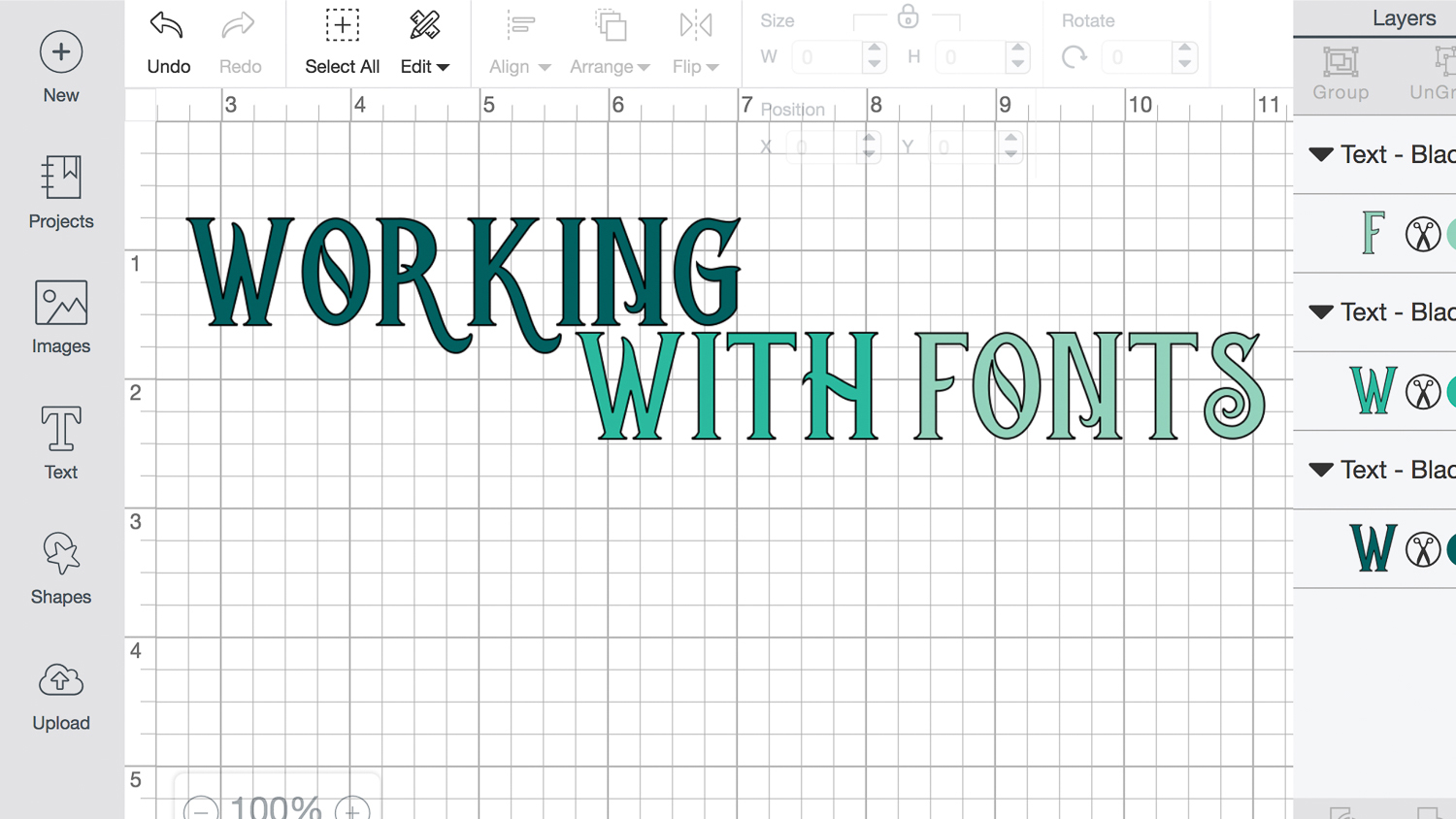
Maintaining legibility while stretching letters in Cricut Design Space is paramount; excessive stretching can render text unreadable. Proportionally adjust letters to ensure clarity is preseved. Utilize the software's feature that allows uniform stretching to prevent distortion.
Harmonizing stretched text with other design elements requires attention to consistency. The text should complement the overall design theme rather than overshadow it. Consider the use of space and alignment with the stretched text to create a cohesive appearance.
Combating common design pitfalls related to stretched text involves avoiding over-stretching, which can lead to a loss of the original font's aesthetic qualities. Balance the need for emphasis with the inherent style of the typeface. Assess the design from different devices and print formats to ensure the stretched text maintains its intended impact across various platforms.
Credit: cricut.com
Finalizing And Exporting Your Design
Before the final saving and exporting of your stretched text design for use with Cricut cutting machines, it is essential to take a moment for reassessing the overall layout and making any necessary tweaks. Ensure that all elements are balanced and harmoniously aligned. This attention to detail guarantees your design's highest quality once it's transferred to the physical medium.
Previewing and testing the design is a critical step as it reveals how the text appears in a print or cut scenario. This process may uncover additional adjustments needed to achieve the desired look. Once satisfied, proceed to save your project in the appropriate file format that Cricut machines recognize, such as .svg or .dxf. The export options within Cricut Design Space provide a guided approach to ensure your designs are ready for accurate cutting and flawless application.
Credit: amyromeu.com
Frequently Asked Questions On How To Stretch Letters In Cricut Design Space
How Do I Distort Letters In Cricut Design Space?
Open Cricut Design Space and select your text. Click on "Ungroup to Letters" under the "Advanced" options. Manually adjust each letter to create your desired distortion. Save or cut your design once complete.
How Do You Stretch Designs On Cricut?
To stretch designs in Cricut, select the image and use the arrow icons to pull the edges to the desired size. Ensure the lock icon is unlocked for free resizing.
How Do You Manipulate Letters In Cricut Design Space?
To manipulate letters in Cricut Design Space, select the text, click "Ungroup to Letters" to edit individually, or use the "Edit" panel for font changes and alignment adjustments. Use "Weld" for connected writing or "Slice" to cut out shapes within letters.
How Do I Thicken Letters On Cricut Design Space?
To thicken letters in Cricut Design Space, use the 'Bold' feature or adjust the 'Font Thickness' slider. For non-boldable fonts, duplicate layers and slightly offset them or apply a 'Shadow' effect.
Conclusion
Mastering letter stretching in Cricut Design Space can transform your projects. By using the techniques discussed, your text comes alive with personality. Practice these steps to ensure your designs stand out. May your creativity shine in every customized piece you craft.
Happy designing!