
To stretch a font in Cricut Design Space, first select the text, then use the resize handle to pull horizontally or vertically. You can adjust the letter spacing by using the "Letter Space" tool in the top menu.
Cricut Design Space offers a wide array of customization options, making it popular among crafters and designers. Stretching a font becomes essential when you're aiming for a specific look or fitting text into a designated area on your project. The user-friendly interface of Cricut Design Space enables you to alter text with precision, enhancing the visual impact of your design.
Users often find that modifying the dimensions of a font can give their projects a personalized touch, which stands out in handmade crafts and designs. Mastering these simple text adjustments can take your Cricut creations to the next level, ensuring your designs are as unique and creative as your ideas.

Credit: cricut.com
Introduction To Cricut Design Space And Text Manipulation
Cricut Design Space offers a variety of tools that enable designers to bring their visions to life. Mastering font manipulation is essential as it has the power to transform the aesthetic and impact of any project. With Cricut, users can stretch fonts to create custom looks, making it perfect for personalizing everything from home decor to customized gifts. The ability to tweak and refine text allows for infinite creativity and personalization.
The functionality of Cricut Design Space is intuitive and user-friendly, ensuring that even beginners can advance quickly in their design capabilities. Exploring the various text manipulation options, such as bending, curving, and stretching, can significantly elevate the caliber of a design. This flexibility contributes to the significance of Cricut's cutting-edge technology in the realm of DIY and professional crafting.
Understanding Fonts In Cricut Design Space
In the realm of Cricut Design Space, a diverse array of fonts is available to cater to your creative projects. System fonts already installed on your computer and Cricut fonts designed specifically for Cricut machines are two main categories. Users might also discover single-layer cutting fonts and multi-layer printable fonts that provide varied design possibilities.
Focusing on licensing, it is paramount to ensure the legal use of fonts. Fonts bundled with Cricut Design Space generally include a commercial use license. However, custom fonts imported from other sources necessitate verifying the usage rights - especially for commercial projects. It is your responsibility to adhere to the terms set forth by the font creator. Neglecting these terms can lead to potential copyright issues.
The Basics Of Stretching Text
Stretching text within Cricut Design Space refers to the process of altering the width of the font characters, effectively expanding them horizontally without affecting their height. Users opt for text stretching to achieve a unique look or to fit the text into a specific design space.
The key difference between stretching and resizing text lies in the dimensions altered. Resizing generally affects both width and height proportionally, maintaining the font's original aspect ratio, whereas stretching only modifies the width, which can cause the text to look elongated.
Step-by-step Guide To Stretching Font
To stretch the font in Cricut Design Space, first, ensure you have the text selected that you wish to modify. Click on the text box to activate it, highlighted by a bounding box around the editable text. This indicates that your text is ready to be manipulated.
Locate the resize handle, which appears as a small arrow icon at the bottom right corner of the bounding box. Click and drag this resize handle horizontally to stretch the width of the font. For vertical stretching, drag the handle vertically. Remember, holding the shift key while dragging ensures that the text stretches uniformly, maintaining the aspect ratio.
Adjusting letter spacing is crucial for an aesthetically pleasing stretch. Find the 'Letter Space' feature in the toolbar, and reduce or increase the spacing until the desired effect is achieved. For multiline text, the line height can be similarly adjusted. This will ensure that the stretched text does not overlap and remains visually coherent. To refine your adjustments, use the slider controls or input exact measurements in the attribute panel.
Advanced Techniques For Text Expansion
Mastering the 'Ungroup to Letters' feature within Cricut Design Space opens up a world of creative possibilities. To start, select the text you wish to edit and choose 'Ungroup to Letters' from the Layers panel. This action breaks down the text into individual letters, allowing you to manipulate each one separately.
As you experiment with each character, the Stretch Tool can be particularly useful. This tool enables you to extend letters horizontally or vertically to achieve the desired effect. Click on a letter, and then drag the resize handle to begin stretching. This means you can easily adjust the width or height of any letter standalone, without impacting the rest of the text.
| Step | Instructions |
|---|---|
| 1 | Select Text |
| 2 | Click 'Ungroup to Letters' |
| 3 | Choose Individual Letter |
| 4 | Use Stretch Tool to Adjust |
Keep in mind that each adjustment can change the dynamics of the entire word or phrase. Testing various levels of stretching can optimize the visual impact of your design. By skilfully using the stretch tool, your text will not only fit the design space but also add an artistic touch to your project.

Credit: cricut.com
Common Pitfalls And Best Practices
Experiencing font distortion is a familiar hurdle in Cricut Design Space. Ensure that the aspect ratio is locked to preserve font proportions while adjusting size. Users often overlook this detail, leading to unintended stretching. Snapping or misalignment may occur if grid settings are not properly configured. Double-check grid preferences for smoother manipulation of text elements.
- When aiming for enlarged text, opt for bold fonts over thin ones to retain readability.
- Incremental adjustments are crucial; dramatic scaling can warp text, making it less appealing.
- Kerning and letter-spacing should be fine-tuned post-stretch to maintain a balanced composition.
- Remember, contrast and color play pivotal roles in ensuring the stretched font remains aesthetically pleasing even after transformation.
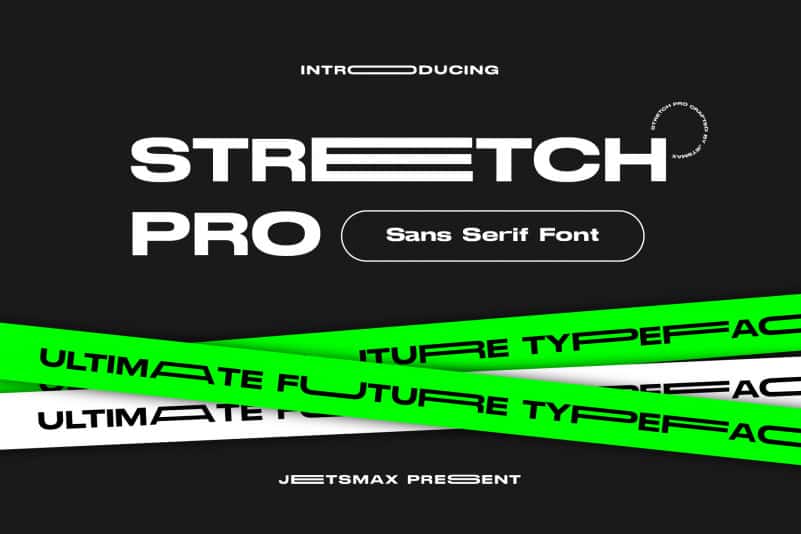
Credit: befonts.com
Frequently Asked Questions Of How To Stretch Font In Cricut Design Space
How Do I Distort Letters In Cricut Design Space?
To distort letters in Cricut Design Space, select the text, click 'Advanced', and choose 'Ungroup to Letters'. Then, manually adjust each letter's position or angle. Confirm your design before cutting.
How Do You Stretch Designs On Cricut?
To stretch designs on Cricut, select your image, click the lock icon to unlock proportions, then drag the arrow handles to resize as desired. Save changes before cutting.
How Do I Make The Font Bigger On My Cricut?
To enlarge the font on your Cricut, click the text box, then use the resize handle to drag and adjust the size.
How Do I Thicken Text In Cricut Design Space?
To thicken text in Cricut Design Space, select the text, choose 'Edit,' and then adjust the 'Letter Space,' or use the 'Bold' feature if available. Alternatively, apply a shadow layer or duplicate and offset the text for a bolder effect.
Conclusion
Mastering the art of text manipulation in Cricut Design Space elevates your crafting projects. Stretching fonts can uniquely customize your designs. Remember, balance and legibility are key. Practice these tricks often, and your creations will surely stand out. Keep experimenting and happy crafting!